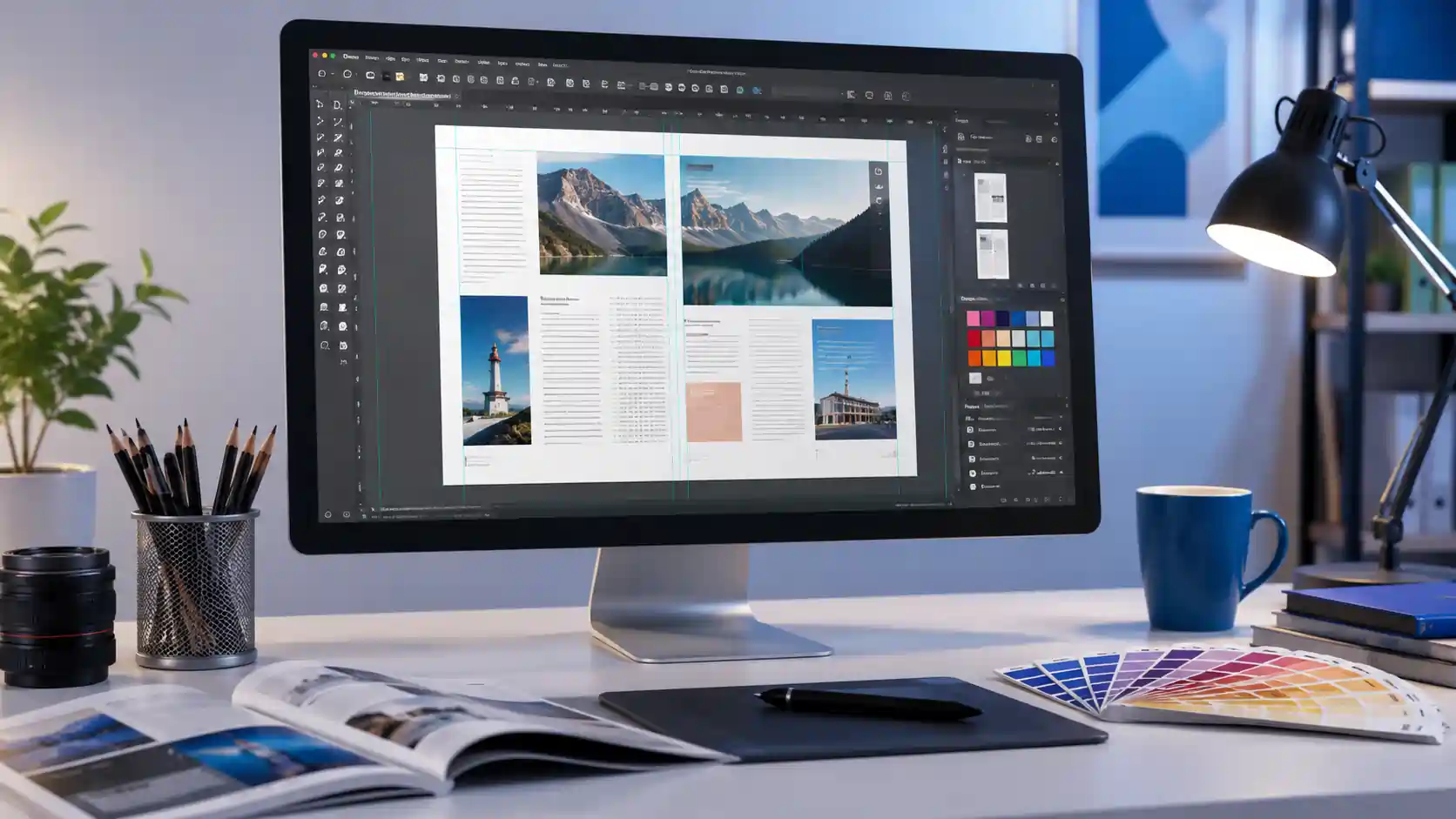
Struggling to mark up a screenshot without juggling three different apps eats away at your workday. After taking a picture, you struggle with cumbersome editors to add an arrow. Shotscribus software removes that friction entirely. It merges instant screen capture with fluid annotation tools inside one lightweight workspace, so your ideas travel from screen to perfectly polished shareable in seconds.
What Exactly Is This Capture Tool?
Shotscribus software is a desktop application built for anyone who needs to capture, annotate, and distribute visual information fast. Think of it as a crossover between a precision screenshot utility and a nimble graphics notepad. You grab any region of your display, then immediately draw, type, highlight, or blur sensitive details—all without launching a separate image editor.
The application saves your marked-up files locally or pushes them straight to cloud storage, email, and team channels. Designers, writers, support agents, and remote educators rely on it because it cuts the steps between “I see it” and “They see it” down to one fluid motion.
Core Capabilities at a Glance
The tool packs a thoughtful feature set tuned for speed and clarity.
| Feature | What It Does |
| One‑click region capture | takes a full-screen view, a freehand shape, or any rectangular region. |
| On‑screen annotation pad | Draw arrows, rectangles, circles, and freehand lines immediately |
| Text overlay with smart fonts | Add clean, readable captions in multiple styles and colors |
| Blur and highlight brush | Hide private information or draw attention to important details |
| Integrated cloud exporter | Send marked‑up shots to Google Drive, Dropbox, or OneDrive |
| Local library with tags | Arrange the captures according to the project, date, and personalized labels. |
| Silent update engine | Fetches upgrades in the background, ready with a single click |
| License‑based protection | Ties your install to a secure account, blocking unauthorized use |
Every function lives inside one window, so you never waste time switching contexts. The interface remains deliberately simple, yet powerful enough to handle complex markup chains.
How to Download Shotscribus Software for Computer
It takes less than three minutes to install the program on your computer.
- Open your browser and go to the official Shotscribus website.
- Click the bright “Download” button on the main page.Your OS system is automatically detected by the website.
- Choose the version that matches your system—Windows 10/11 or macOS 12 and later.
- Save the installer file. For Windows, it’s a lightweight .exe; for Mac, a .dmg disk image.
- Double-click the downloaded file, then proceed with the setup wizard. takes a full-screen view, a freehand shape, or any rectangular region.
- Launch the program. A welcome screen prompts you to create a free account or sign in to unlock cloud sync.
After installation, the app sits quietly in your system tray or menu bar, ready with a customizable keyboard shortcut. You no longer need to guess how to get the Shotscribus software on your PC.
Installation Walkthrough for Desktop
Once the download completes, the installer guides you through a clean setup.
- Windows: Run the .exe as an administrator. The wizard asks for installation path and start menu folder. Click “Install,” and the progress bar finishes in less than a minute.
- Mac: Open the .dmg file and drag the Shotscribus icon into your Applications folder. In System Settings > Privacy & Security, macOS may request authorization from an identifiable developer before opening applications.
Immediately after install, fetch the latest component patches so you begin with the most stable build.
Is Shotscribus Used for Edit Work Beyond Capturing?
Indeed, and much more than the majority of people anticipate. Does Shotscribus work well for editing tasks? Absolutely. The editing layer activates the moment you take a shot. A slim toolbar appears atop your capture, offering:
- Free‑draw pencil for custom callouts.
- Vector shapes that snap into clean lines and arrows.
- Text blocks you can drag anywhere, with adjustable size and color.
- Use the crop and resize tools to remove unwanted edges.
- Step sequencer that numbers your annotations so viewers follow a logical order.
You can even open existing images from your hard drive and edit them inside the same workspace. This turns the tool into a rapid visual note‑taker for screenshots, photos, and scanned documents. The edits remain non‑destructive until you export, so your original file stays intact. The question “is shotscribus used for edit” now has a firm, practical answer: it is a full annotation editor, not just a basic screen grabber.
Shotscribus Software Upgrade: Staying Current in Seconds
Keeping the application current unlocks new annotation styles, faster export pipelines, and security fixes. The shotscribus software upgrade process depends on your license type.
- Automatic upgrade (recommended): Enable “Background updates” in Settings > General. The app downloads new releases silently and shows a small notification. Click “Restart Now” to finalize.
- Manual upgrade: Choose “Check for Updates” from the “Help” menu. The changelog is shown in a panel if a version is available. Hit “Download and Install.” The updater closes the program, applies the patch, and reopens it.
- License renewal upgrade: When your annual license expires, the software reminds you. Visit your account page on the official website, renew, and the new key activates immediately without reinstalling.
Always restart the application after a shotscribus software upgrade to load fresh plugins. Your custom templates and library tags migrate automatically.
How Uninstall Shotscribus Software in Mac Completely
Removing the tool from macOS demands more than dragging the app to the Trash. Here’s how to remove the Shotscribus app from your Mac without creating any digital mess.
- Quit the app completely. Right‑click the menu bar icon and choose “Quit,” or press Cmd+Q when active.
- Open Finder > Applications. Drag the symbol for Shotscribus to the trash.
- Delete leftover support files. In Finder, press Cmd+Shift+G and enter each of these paths one at a time, moving their Shotscribus folders to Trash:
- ~/Library/Application Support/Shotscribus/
- ~/Library/Caches/com.shotscribus.app/
- ~/Library/Preferences/com.shotscribus.app.plist
- Empty the Trash. Choose “Empty Trash” when you right-click the Trash icon in the Dock.
- Restart your Mac to clear any running background tasks.
Manual removal of preference files guarantees no orphaned data stays behind. This process answers how uninstall shotscribus software in mac in a thorough way that keeps your system tidy.
What Environmental Benefits Can Shotscribus Software Offer?
Switching to digital annotation directly reduces paper consumption in daily workflows. Instead of printing screen layouts, design mockups, or email threads for manual markup, teams annotate everything on‑screen. How can shotscribus software help the environment beyond just saving paper? The answer lies in replacing entire physical documentation chains.
Digital collaboration tools like this one can slash office paper use dramatically. Instant PDF export and share links remove any reason to print “for the record.” Cloud archiving decreases reliance on filing cabinets, saving physical storage space and curbing deforestation pressure. The water, energy, and carbon emissions associated with the production and disposal of a 20-page document are reduced when it is digitally annotated. Each screen capture that replaces a printed copy is a small vote for a cleaner planet. That is the simplest way to understand how can shotscribus software help the environment—one paperless annotation at a time.
How Can Shotscribus Software Be Protected? Essential Security Steps
A few thoughtful steps are needed to protect your license and the private screenshots you take. How can shotscribus software be protected against unauthorized access and data leaks? Start here.
- Activate license binding: Link your install to your account email and a device hardware ID. The activation server validates usage, blocking cloned installations.
- Set a strong app‑level passcode: Inside Settings > Privacy, enable “Launch Passcode.” The app asks for a 6‑digit PIN or biometric authentication before opening, adding a layer beyond your system login.
- Encrypt cloud exports: When connecting Google Drive or Dropbox, toggle “Encrypt before upload” in Cloud Settings. This scrambles files with AES‑256 encryption; only your linked devices hold the decryption key.
- Regularly audit linked sessions: Visit your online Shotscribus dashboard and revoke any unrecognized devices.
- Keep your operating system’s real‑time protection active: Ensure it scans the application directory. The auto‑upgrade feature handles security patches promptly.
In public forums, never divulge your license key.. If you suspect unauthorized access, reset your password and trigger a remote deactivation from your account page. That is exactly how can shotscribus software be protected against misuse and data exposure.
Seven Power Habits for Daily Users
Small adjustments turn the tool into a silent productivity partner.
- Customize hotkeys: Rebind capture shortcuts to avoid clashes. Many users set Ctrl+Shift+2 for region and Ctrl+Shift+3 for full screen.
- Create annotation templates by storing commonly used text stamps in the template library, such as “Approved” or “Draft.” Apply them with one click.
- Use the step sequencer for tutorials: Number your callouts 1, 2, 3 and export as a multi‑step instruction guide.
- Connect the Asana or Trello integration from the Plugins store to synchronize with project boards. Annotated screenshots attach directly to task cards.
- Master the blur brush for privacy: Quickly hide email addresses, phone numbers, or API keys before sharing.
- Organize with color‑coded tags: Assign red tags to urgent items, blue to drafts, green to final versions.
- Set export presets: Configure one‑click export sizes for email, social media, and documentation.
These practices make every capture cycle faster and more intentional.
How It Stacks Up Against Built‑in System Tools
Most operating systems include basic snipping utilities, but they lack integrated editing. Here is the practical difference.
- Speed: Built‑in tools force you to open a separate editor, often Paint or Preview. This tool keeps everything in one layer.
- Annotation power: Standard grabbers offer a pen and highlighter. This application adds shapes, blur, numbered steps, and cloud export.
- Organization: Instead of a messy desktop folder, captures are indexed by tag and project, searchable in seconds.
- Cross‑device sync: OS tools don’t sync edited shots; this one sends them to any linked cloud drive instantly.
Dedicated capture applications dramatically reduce steps for frequent annotators. The interface stays friendly even for first‑time users while cutting the workflow in half.
FAQs
Can the application capture scrolling web pages?
Yes, choose “Scrolling Capture” from the tray menu. It automatically stitches a full‑page screenshot, perfect for long articles or terms of service.
What if the app freezes during how uninstall shotscribus software in mac?
Force‑quit via Activity Monitor, then follow the standard manual removal steps. If remnants remain, reboot in Safe Mode and delete the support folders again.
Does it function without an internet connection?
All capturing, editing, and local saving work offline. Cloud sync pauses until you reconnect, then uploads queued files automatically.
What license options exist?
A free tier offers basic capture with watermark. Personal and team subscriptions unlock the full annotation toolkit, cloud exporters, and priority support.
Is it strictly for screenshots or also photos?
You can import any JPEG, PNG, or BMP file and use the same annotation toolbar. The original file remains untouched unless you deliberately overwrite it.
How do I keep annotated files private?
Turn on AES-256 encryption for cloud exports and activate the launch passcode. Also, avoid storing sensitive captures in shared public folders.
Conclusion
You have the complete map of how this capture tool transforms screen recording into a fast, organized, and eco‑conscious daily habit. Download it on your computer, run through the quick setup, and produce your first marked‑up screenshot in under a minute. When one‑click capture, powerful on‑screen editing, and secure cloud delivery come together, every visual message lands with clarity and speed. Replace the old multi‑app shuffle with one clean workspace—grab the official installer and start sharing ideas the moment they appear on your screen.